
With a perfect timing, as soon as I’ve published my previous post about using the chsarp-sqlite engine in combination with sqlite-net, Peter Huene has released a porting of the famous library for Windows Phone 8. What does it mean? That, finally, we are able to use the native SQLite engine that has been released as a Visual Studio extension and that we can use a common library to share our data layer with a Windows Store app for Windows 8.
At the moment, the project isn’t available on NuGet yet and requires two steps: the first one is to add a native class, that acts as a wrapper for the functions used by sqlite-net, and the second is to download a specific sqlite-net version, where the developer has replaced the usage of the csharp-sqlite engine with the native one.
Let’s start!
Please welcome GitHub
Both projects are hosted on GitHub (a popular website to host open source projects that also acts as a source control system based on Git), so the best way to download and use both them is using Git: you can also download the project in a single zip file but, this way, every time the developer will change something you’ll have to download everything again and add the new project to your solution. If you’re not familiar with Git, the easiest way to use it is to download GitHub for Windows, which is a Windows client that is able to connect to repositories hosted on GitHub and to keep files in sync with the server.
Just download and install the application from here: after you’ve launched it you’ll have to configure it for the first time. You’ll need to have a valid GitHub account: if you don’t have it, simply go to the website and create one. Once you’ve done you should see a window like this:
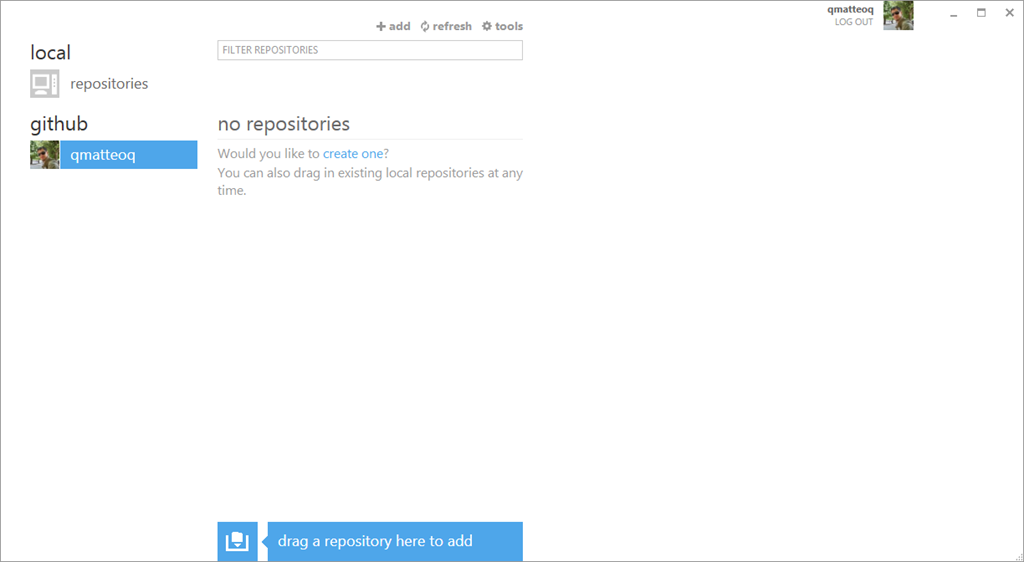
Unless you’ve already used GitHub and you already own one or more repositories, the window will be empty. Now go to the GitHub website and, specifically, to the sqlite-net-wp8 repository, that is available at the URL https://github.com/peterhuene/sqlite-net-wp8. At the top of the page, in the toolbar, you’ll find a button labeled Clone in Windows. Click on it and make sure that you’ve logged in in the website with the same credentials you used for the application, otherwise you’ll be redirected to the page to download the GitHub client.
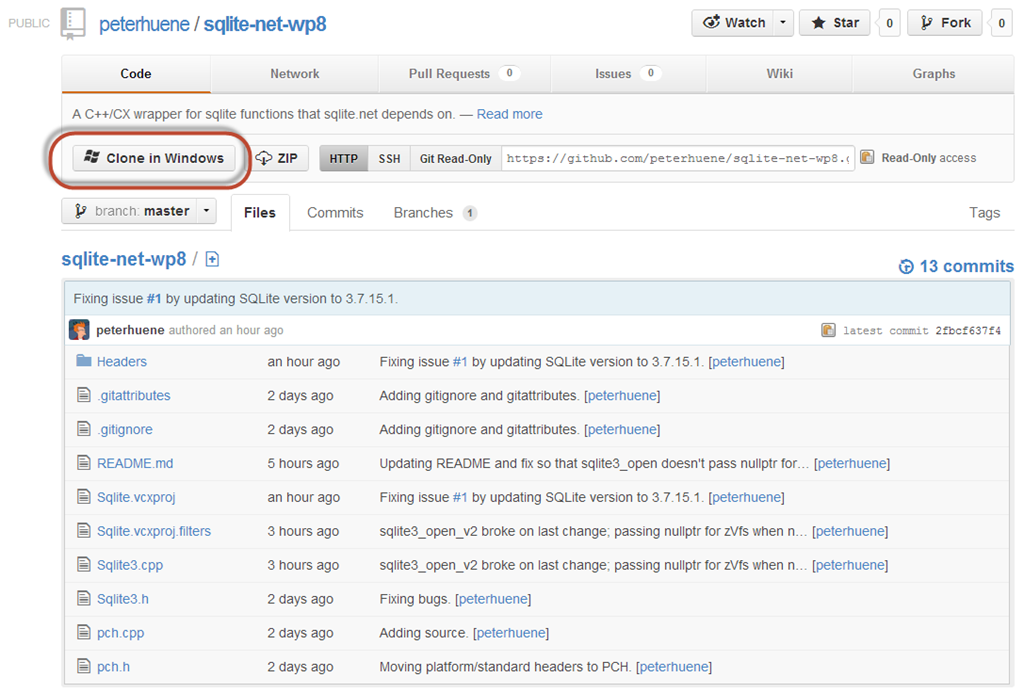
Once you’ve done it the GitHub client will be opened and the repository will be automatically added to the local repositories list: after a while (the progress bar will show you the status of the operation) the whole repository will be downloaded in the default location, that is the folder C:\Users\User\Documents\GitHub\ (where User is your Windows username). Inside it you’ll find a folder called sqlite-net-wp8: that is the project that we need to add to our solution.
Since we’re already playing with GitHub, let’s download also the sqlite-net fork adapted to work with Windows Phone 8: repeat the operations we’ve just made on the repository available at the URL https://github.com/peterhuene/sqlite-net.
The last thing to do is to make sure you’ve installed the SQLite for Windows Phone extension, that is available from the Visual Studio Gallery.
Now that we have everything we need, we can start working on our Windows Phone 8 project.
Let’s play with SQLite
The first thing to do is to open Visual Studio 2012 and to create a Windows Phone 8 application. Once you have it, it’s time to add to the solution the sqlite-net-wp8 project we’ve downloaded from GitHub: simply right click on the solution, choose Add existing project and look for the file Sqlite.vcxproj in the sqlite-net-wp8 folder (that should be C:\Users\User\Documents\GitHub\sqlite-net-wp8). You’ll see the new project added in the Solution Explorer: it will have a different icon than the Windows Phone project, since it’s written in native code and not in C#.
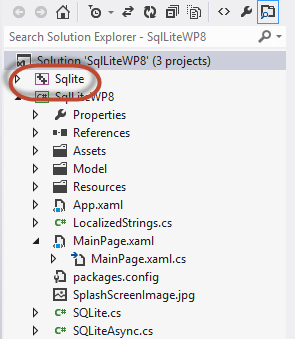
As I’ve previously explained, this is just the native wrapper for some of the functions used by sqlite-net: now we need to add the real sqlite-net and we do that by simply copying the Sqlite.cs and SqliteAsync.cs files that are stored inside the src folder of the solution (that will be available, as for the other one, in the C:\Usesr\User\Documents\GitHub folder) into our project. We can do that by simply right clicking on the Windows Phone project and choosing Add existing item.
Now we need to add a reference in our Windows Phone application both to the sqlite-net-wp8 library and to the SQLite engine: right click on your project, choose Add reference and, in the Solution tab, look for the sqlite library; after that, look for the SQLite for Windows Phone library, that is available in the Windows Phone – Extensions section.
UPDATE: the developer, to keep supporting also the C# engine I’ve talked about in my previous post, has recently added a new requirement to use his library; you’ll have to add a specific contitional build symbol, in order to properly use the native engine. To do that, right click on your project (the one that contains the Sqlite.cs and SqliteAsync.cs files you’ve previously added), choose Properties, click on the Build tab and, in the Conditional compilation symbols textbox add at the end the following symbol: USE_WP8_NATIVE_SQLITE. In a standard Windows Phone 8 project, you should have something like this:
SILVERLIGHT;WINDOWS_PHONE;USE_WP8_NATIVE_SQLITE
And now? Now we can simply copy and paste the code we’ve already seen in the original post about Windows 8 or in the more recent post about csharp-sqlite: since all these libraries are based on sqlite-net, the code needed to interact with the database and to create or read data will be exactly the same. Here are the usual examples I make about doing common operations:
UPDATE: as some readers have pointed out in the comments, with the previous code eveyrthing was working fine, but the database file was missing in the local storage. As the sqlite-net-wp8 developer pointed me out, there’s a difference between the Windows 8 and the Windows Phone version of the library. In Windows 8 you don’t have to set the path, it’s automatically created in the root of the local storage, unless you specify differently. In Windows Phone 8, instead, you have to pass the full path of the local storage where you want to create the databse: the code below has been updated to reflect this change.
//create the database
private async void CreateDatabase()
{
SQLiteAsyncConnection conn = new SQLiteAsyncConnection(Path.Combine(ApplicationData.Current.LocalFolder.Path, "people.db"), true);
await conn.CreateTableAsync<Person>();
}
//insert some data
private async void Button_Click_1(object sender, RoutedEventArgs e)
{
SQLiteAsyncConnection conn = new SQLiteAsyncConnection(Path.Combine(ApplicationData.Current.LocalFolder.Path, "people.db"), true);
Person person = new Person
{
Name = "Matteo",
Surname = "Pagani"
};
await conn.InsertAsync(person);
}
//read the data
private async void Button_Click_2(object sender, RoutedEventArgs e)
{
SQLiteAsyncConnection conn = new SQLiteAsyncConnection(Path.Combine(ApplicationData.Current.LocalFolder.Path, "people.db"), true);
var query = conn.Table<Person>().Where(x => x.Name == "Matteo");
var result = await query.ToListAsync();
foreach (var item in result)
{
Debug.WriteLine(string.Format("{0}: {1} {2}", item.Id, item.Name, item.Surname));
}
}
Be careful!
There are some things to keep in mind when you work with this library and SQLite. The first one is that, actually, both libraries are not available on NuGet: you’ll have to keep them updated by using GitHub for Windows and, from time to time, by syncing the repositories, in order to have your local copy updated with the changes. If you’re going to add the sqlite-net-wp8 project to the solution, like I did in the post, you won’t have to do anything, you’ll just have to rebuild your project. In case of the sqlite-net fork, instead, since we’ve simply copied the files, you’ll need to overwrite the old ones with new ones, in case they are updated. Or, even better, you can add the two files as a link from the original project: this way you’ll simply have to update the libraries from GitHub to see the updates in your application.
The second important thing to consider is that the sqlite-net-wp8 library is built against a specific SQLite version: if the SQLite team releases an update to the Visual Studio extension (so that Visual Studio is going to prompt you that there’s an update to install), don’t update it until the sqlite-net-wp8 project has been updated. Otherwise, many references will be missing and you won’t be able to open the project at all.
Have fun!



Thank you for this post. This is exactly what I needed today.
Ok, I’m trying that. Database working, but i can’t find *.sql file in Isolated Storage and database rewrite after updating the application.
I have the same problem as Alex. The database doesn’t seem to be written to Isolated Storage. Did you manage to fix this Alex?
Hi Jon and Alex, I can confirm the problem, I’ve tried by myself. I’ve contacted Peter, the porting’s developer, I will update the post as soon as I have more info to share.
Hi, I’ve update the code in the post to fix the problem you’ve reported. Thanks for pointing me out!
I just went through this tutorial (4:30 PM CST) and I am still getting the “Community” issue on this line: using Sqlite3 = Community.CsharpSqlite.Sqlite3;
Can you leave a reply with the update as well?
Nevermind! I had the Conditional statement incorrect!
Thanks for the update. I also pointed to update the repository to reflect the latest Sqlite for Windows Phone version in the Visual Studio Gallery.
Although everything is working fine in the emulator, I’m trying to deploy to a real WP8 device (Nokia Lumia 820), and there is where I have the problem. The build fails with:
Deployment failed because an app with target platform x86 cannot be deployed to Device. If the target platform is win32/ x86, select an emulator. If the target platform is ARM, select Device.
Any steps I’m missing? Anyone manage to use the suggested solution configuration to build and deploy an app in a real device?
Thanks for the great article!
Hi, sqlite engine can’t be built both for ARM and X86, but you have to set just one target platform. To do it, click on the Debug / Release dropdown and choose Configuration Manager. In this windows set ARM as platform in the Build dropdown and try again.
Thanks, it works fine! I totally forgot the configuration manager, I was just trying to verify the project properties. It works great, now I have a great foundation to refactor my new app to target WP8 and W8
Thanks again for the great article and helpful tips. It covers nicely the gaps left by Microsoft with their “partial” support for sqlite for WP developers!
Thanks Matteo, it’s all working now.
Great article. I’ll be using this as the storage foundation for my next app. Can’t thank you enough!
Hi,
Is there a way to access the database that is created? I have determined that its directory is: “C:\Data\Users\DefApps\AppData\{DBB9F7C7-0D4B-4019-8450-82FAD1DE51A8}\Local\people.db” but I don’t have access to this and can’t open it.
Apart from that,t hanks for your tutorial, everything worked out great!
Hi, the database is created in the local storage of the emulator or the device, so it isn’t stored on your hard drive like a normal file. You can use an utility like Windows Phone Power Tools to access to the isolated storage of your application and download the file. You can download it from http://wptools.codeplex.com/
Hello, I am able to run my app fine on a virtual device provided by the emulator. But when I try to deploy it on a real WP8 device, I get the error:
“The type or namespace name ‘Community’ could not be found (are you missing a using directive or an assembly reference?)”
Thank you.
Are you deploying to the device using Debug or Release configuration? Make sure that the compilation symbol described in the post is added in the project’s properties for every configuration.
Thank you! I had added the compilation symbol only to the emulator and had not added it to the device itself. Everything works great now, thanks!
Any thoughts about doing an article about a “clean” way to using sqlite with a project that has a platform specific part and a PCL for the common part. What would be the best strategy? Create an abstraction in the PCL to access sqlite? etc.
I’m sure there are a lot of people right now working on solutions and ideas on how to combine sqlite, multiplatform projects and PCLs…
I am using codeplex tool “Sqlite Client for Windows Phone” available at http://sqlitewindowsphone.codeplex.com/releases. Is it allowed to use? it is working fine in my Windows phone 8 and 7.5 emulators. I haven’t tested my app in the device yet. does the Microsoft WP store accepts my app with it or do I need to change to this new library “sqlite-net”? Please suggest..
Hi, that tool is good, the downside is that you’re using a custom C# engine and not the original sqlite engine developed by the sqlite team. This way you loose all the updates made by the team and you won’t be able to share easily your code with a Windows 8 application. More or less it’s the same approach I’ve explained in this post http://wp.qmatteoq.com/a-workaround-to-use-sqlite-in-a-windows-phone-8-application/, pros and cons are the same.
Thanks Matteo for quick reply. I am almost done with my app coding and I am about to publish to WP market place. right now I am not planning to do windows 8 version of it. So, I want to submit without changing to new sqlite-net implementation. hoping, it won’t be a problem for passing certification test.
Have you done this yet?
Hi Matteo,
Found this postvery interesting.
If you can make a post which explains creating a common datalayer which can be used for both windows phone 8 and windows 8,that would be really great.
Thanks in advance.
Hi , First of all thanks for the great post
, i have few doubts 1) does the same process work even for windows phone 7 ????,( i am developing a windows phone app , i would like to target all windows phone devices i.e, windows phone 7, 8) 2) sqlite support for windows phone 7 ??? please let me know , looking forward for your reply
Hi, here are your answers:
1) No, Windows Phone 7 is not supported using this procedure because the native SQLite engine is available just for the Windows Runtime (so Windows Phone 8 and Windows 8).
2) You can take a look at this post of mine: http://wp.qmatteoq.com/a-workaround-to-use-sqlite-in-a-windows-phone-8-application/ The solution explained uses a C# engine that works also with Windows Phone 7.
thanks a lot for the reply , this cleared my doubt .
Windows phone 8 app how to Import an already existing SQLite database file ????
hi, i have a followed your post “Import an already existing SQLite database in a Windows 8 application” in and successfully implemented the way you have guided in the post and imported the existing sqlite database in my windows 8 app , but now i am trying to implement the same thing in my windows phone 8 app, since the file is saved not on the hard disc but saved saved in local storage of emulator /device , how how can i check every time that file is present or not on application 1st page load and if there, don’t do anything if not there copy the data present in exisisting external sqlite db file present in project to that emulator/device isolated storage. i request you please let me know on how to implement it , it would be very helpful to me i request you please let me know on how to implement it , looking forward to your reply . thanks in advance
You have to follow the same approach described in my post about Windows 8: the code sample will work also on Windows Phone 8, since the APIs of the Windows Runtime used to work with the storage are the same in the two platforms.
I’ve been using this for a bit and it works great. A problem I have is that my app works great until I submit it to the app store. I’ve been submitting betas and have yet to figure out why it doesn’t work after being submitted. I’ll update if I ever figure it out.
Hi and thanks for the tutorial.
After spending some hours setting up sqlite I finally got rid of all the errors and could compile. However when I try to run this example I’m getting “An exception of type ‘System.BadImageFormatException’ occurred in SQLtesting.DLL but was not handled in user code” error.
This happens on “await conn.InsertAsync(person); ” line.
Any idea on what might be wrong?
Hey Teo, do you think you can send me a sample of your project I can play with? With just the information you gave me, I can’t understand what’s going on.
hi..you are doing a great job..
i just want your help..i followed your process for database access
for wp8 it just work fine..
and now i want to access only the column of a table from my database but not have any clue..
plzz..reply..and if you can add something more about using sqlite
in wp8 about query purpose plzz..do..
To do that, you should do a manual query against the database, otherwise you have to get the whole object and get only the information you need.
1028: The native API api-ms-win-core-interlocked-l1-2-0.dll:InterlockedCompareExchange() isn’t allowed in assembly sqlite3.dll. Update it and then try again.
I Got This Problem While Uploading xap file In Store Help Me Fix It For windows phone 8
Please check that the app has been compiled for ARM and not for x86 or Any CPU, since SQLite engine can’t be compiled for the Any CPU target.
Hi.. Thanks alot for your post… very helpfull.
Is SQlite better than SQl CE for windows phone 8 applications w.r.t performance ?
Yes, the downside is that SQLite is still not flexible and powerful as using SQL CE with LINQ to SQL (for example, in managing relations).
I need some help. Do you have a code snippet of when the app first starts up, it checks if the db exists, and if does not it creates it. I’m having a major issue. I created a db using SQLite Expert Personal and its quick and works fine. I created a new project and updated all of SQLite to latest version. I run my app, write data to a table and it never gets written and throws no errors. I cannot figure out the problem. So I’m starting from scratch.
Is the database you’ve created with the tool copied in the storage the first time the app is executed?
How do I retrieve the last inserted record row id?
I tried something like this:
cmd.CommandText = “select last_insert_rowid() as id from myTable”;
var temp = cmd.ExecuteQuery();
Is there any documentation on this anywhere?
It’s enough to access to the id property of the object you’ve just inserted.
Here is a sample where I show a message with the ID of the record I’ve just added to the table.
private async void OnInsertDataClicked(object sender, RoutedEventArgs e){
SQLiteAsyncConnection conn = new SQLiteAsyncConnection("people.db");
Person person = new Person
{
Name = "Matteo",
Surname = "Pagani"
};
await conn.InsertAsync(person);
MessageBox.Show(person.Id.ToString());
}
Thank you. I’m doing it slightly different
using (var db = new SQLite.SQLiteConnection(System.IO.Path.Combine(ApplicationData.Current.LocalFolder.Path, “myDB.db”), true))
{
int sucess;
sucess = db.Insert(new myTable()
{
TableID = _vm.TableID,
Description = _vm.Description,
TableDT = _vm.TableDT
});
}
I’m using a viewmodel I have created. How would I get the ID doing it this way?
Instead of using creating a new myTable instance inside the Insert() method, create it outside and pass it to the Insert() method. Or is there any specific reason why you’re using this code?
Hi, thank you for the write-up! Is it not safe to use the praeclarum version of sqlite-net alongside sqlite-net-wp8?
There are some differences between Windows Phone and Windows 8, so the official sqlite-net version from praeclarum doesn’t work Windows Phone, but just with Windows Store apps for Windows 8.
Hey Matt,
I’ve done all you’ve said, the SQlite project is added and the SQLite.cs and SQLiteAsync.cs too. I have references to Sqlite and SQLite for Windows Phone.
I’ve also updated my phone app by putting “using SQLite” and “using Sqlite”.
The compilation symbols are updated too, for every configuration.
After I’ve entered all code, and I try to build or debug it, I get several errors. These are:
Error 1 The name ‘Path’ does not exist in the current context
Error 2 The name ‘ApplicationData’ does not exist in the current context
Error 7 The name ‘Debug’ does not exist in the current context
Any ideas how I can resolve this?
Thanks in advance!
I think you’re missing the namespaces to work with the local storage, that are
using System.IO;
using Windows.Storage;